MAG Box IPTV Setup: How to Configure Your Portal
Step-by-step MAG box portal configuration guide. Covers MAG 322, 420, 524, and 540 models with troubleshooting tips.
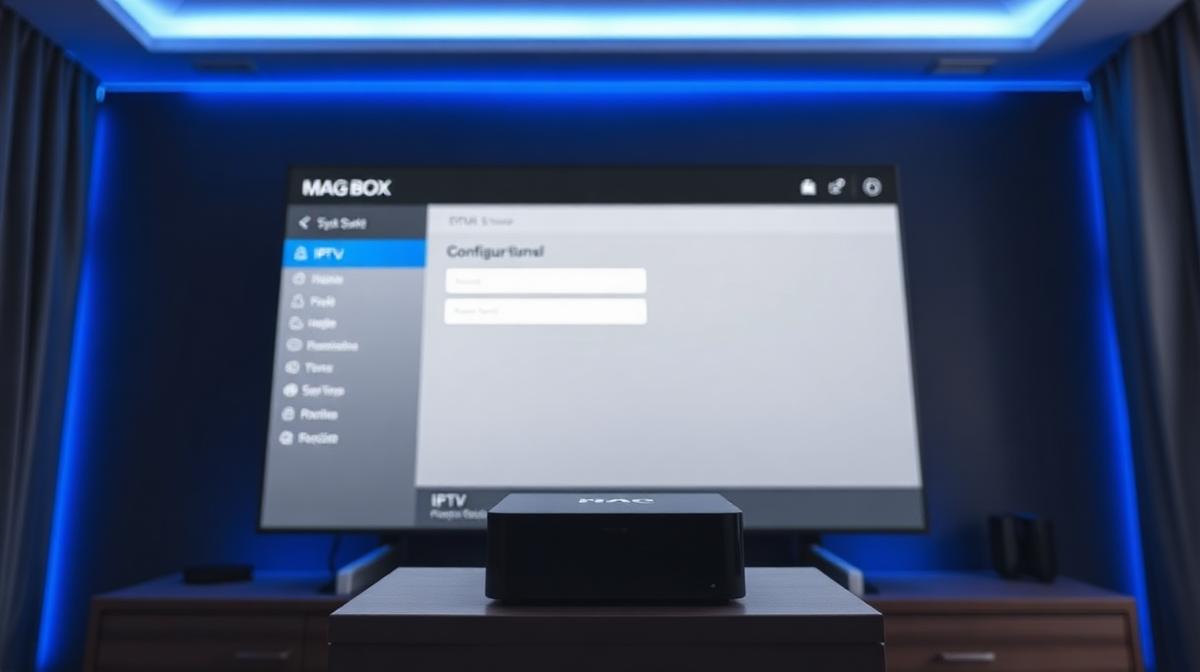
MAG boxes are purpose-built devices for IPTV streaming. They use a portal URL system instead of apps. This guide shows you how to configure a MAG box portal in under 10 minutes. If you're new to IPTV, start with our complete IPTV beginner's guide.
🔑 Key Takeaways
- MAG boxes use portal URLs instead of apps for IPTV
- Setup takes about 10 minutes with the right credentials
- Popular models include MAG 322, MAG 420, MAG 524, and MAG 540
- Your IPTV provider supplies the portal URL and MAC address registration
- MAG boxes offer stable, dedicated IPTV performance
📌 Disclaimer
What Is a MAG Box?
A MAG box is a dedicated IPTV set-top box made by Infomir. Unlike Firestick or Android TV boxes, MAG devices run a Linux-based operating system. They are built specifically for IPTV streaming. This means better stability and fewer crashes.
MAG boxes connect to your IPTV provider through a portal URL. Your provider registers your device's MAC address. Then the box loads your channels, EPG, and VOD library automatically. There are no apps to download or update.
Many of the top-rated IPTV providers support MAG box connections. It's one of the most reliable ways to watch IPTV on your TV.
✅ MAG Box Advantages
- Purpose-built for IPTV — very stable
- No app crashes or Android updates
- Simple portal-based setup
- Hardware-accelerated video decoding
- Works with most IPTV providers
⚠️ MAG Box Limitations
- Only works for IPTV — no other apps
- No TiviMate or IPTV Smarters support
- Requires provider MAC address registration
- Older models lack 4K support
Popular MAG Box Models Compared
Infomir makes several MAG box models. Each targets a different budget and feature set. Here's how the current lineup compares.
| Feature | MAG 322 | MAG 420 | MAG 524 | MAG 540 |
|---|---|---|---|---|
Resolution | 1080p | 4K | 4K HDR | 4K HDR |
Processor | BCM75839 | Amlogic | Amlogic S905X2 | Amlogic S905X4 |
RAM | 512 MB | 1 GB | 1 GB | 2 GB |
Wi-Fi | ||||
Bluetooth | ||||
HEVC/H.265 | ||||
Price Range | $50–70 | $80–100 | $100–130 | $130–160 |
💡 Which Model to Buy?
What You Need Before Setup
Gather these items before you start. Having everything ready makes setup smooth and quick.
✅ Prerequisites Checklist:
- 📦 MAG box with power adapter and HDMI cable
- 📺 TV with an available HDMI port
- 📶 Internet connection — 25+ Mbps for HD, 50+ Mbps for 4K
- 🔑 Portal URL from your IPTV provider
- 🏷️ MAC address — found on the sticker under your MAG box or in Settings
Don't have an IPTV provider yet? Browse our top 20 tested IPTV services to find one that supports MAG box connections.
⚠️ MAC Address Registration
00:1A:79.How to Configure the Portal URL (Step-by-Step)
Portal configuration is the core of MAG box setup. Follow these steps carefully. The process is the same on all MAG models.
Connect and Power On
Plug the HDMI cable into your TV and MAG box. Connect the power adapter. The MAG box boots to a loading screen.
First boot may take 1–2 minutes. Don't unplug during this time.
Open System Settings
When the main menu loads, navigate to Settings → System Settings using your remote.
On some models, press the Setup/SET button on the remote to access settings directly.
Go to Servers → Portals
Inside System Settings, select Servers. Then select Portals.
You'll see fields for Portal 1 name and Portal 1 URL.
Enter Your Portal URL
In the Portal 1 name field, type any name (e.g., "My IPTV").
In the Portal 1 URL field, enter the URL your provider gave you.
Example: http://provider.com:8080/c/
Press OK to save.
Restart and Connect
Go back to the main menu. The box may ask to restart. Select Yes.
After rebooting, the MAG box connects to your portal. Your channels and EPG load automatically.
🎉 You're all set! Browse channels and start watching.
Advanced Settings & EPG Configuration
Once the portal is working, you can optimize your experience. These settings improve channel loading and EPG accuracy.
EPG (Electronic Program Guide) Setup
Most MAG box portals load the EPG automatically. If yours doesn't show program info:
- Go to Settings → EPG
- Set EPG time shift to match your timezone
- Press Refresh EPG to force a reload
- Wait 1–2 minutes for the guide to populate
Video Settings
- Set Video output to match your TV resolution (1080p or 4K)
- Enable HDMI CEC to control the box with your TV remote
- Set Aspect ratio to 16:9 for widescreen TVs
Network Optimization
- Use an Ethernet cable for the most stable connection
- If using Wi-Fi, connect to the 5 GHz band
- Set DNS to 8.8.8.8 and 8.8.4.4 for better performance
💡 Multiple Portals
Troubleshooting Common MAG Box Issues
Here are fixes for the most common problems during MAG box setup.
"Portal Loading Error" or Blank Screen
- Double-check the portal URL for typos
- Make sure your provider has registered your MAC address
- Verify your subscription is active
- Restart the MAG box by unplugging for 10 seconds
Buffering or Freezing
- Switch to a wired Ethernet connection
- Test your internet speed — you need 25+ Mbps for HD
- Change DNS to Google DNS (8.8.8.8)
- Contact your provider — the issue may be server-side
No EPG Data
- Go to Settings → EPG → Refresh EPG
- Check that your timezone is correct
- Ask your provider if EPG is included in your plan
Remote Not Working
- Replace the remote batteries
- Point the remote directly at the MAG box sensor
- Try the Firestick alternative if your remote is defective
MAG Box vs Firestick: Which Is Better for IPTV?
Both are excellent for IPTV, but they serve different users. MAG boxes are purpose-built and stable. Firesticks are flexible and app-based.
| Feature | MAG Box | Firestick |
|---|---|---|
Setup Method | Portal URL | IPTV Apps |
Stability | Excellent | Good |
App Support | IPTV Only | Netflix, YouTube, etc. |
TiviMate Support | ||
4K Support | MAG 420+ | 4K/4K Max |
Price | $50–160 | $29–59 |
Best For | Dedicated IPTV | All-purpose streaming |
If you want a dedicated IPTV device, get a MAG box. If you want IPTV plus other streaming apps, get a Firestick. You can also explore Android TV IPTV apps for more options.
Frequently Asked Questions
🔥 Find the Best IPTV Provider for MAG Box
Compare 20 tested IPTV services. See which ones support MAG box portals.
View Provider Rankings📝 Article Summary
- MAG boxes use portal URLs — not apps — for IPTV streaming
- Enter the portal URL in Settings → Servers → Portals
- Your provider must register your MAC address before setup
- The MAG 524 is the best value model with 4K HDR and Wi-Fi
- Use Ethernet for the most stable streaming experience
Find the Right IPTV Provider
Our expert team has reviewed and ranked the top 20 IPTV services for 2026. Compare features, pricing, and performance to make an informed decision.
Independent reviews • Updated for 2026
Written by
IPTV Reviews Team
Our team of streaming experts is dedicated to helping you find the best IPTV solutions. With years of experience in the industry, we provide in-depth guides, reviews, and tutorials.
You Might Also Like
How to Install IPTV on Firestick: Step-by-Step
Complete guide to installing and setting up IPTV on Amazon Firestick in just 5 minutes.
What is IPTV Service? Complete Guide 2026
Learn everything about IPTV services, how they work, and why they are the future of television streaming.
Best IPTV Service Providers (2026) — Top 20 Tested
Discover the top 20 IPTV providers in 2026. Compare features, pricing, and channels. Find the perfect streaming service for your needs. Updated reviews.