BuzzTV IPTV Box Configuration: Complete Tutorial
How to set up IPTV on BuzzTV boxes. Covers Xtream Codes, M3U playlist, and portal URL methods for all BuzzTV models.
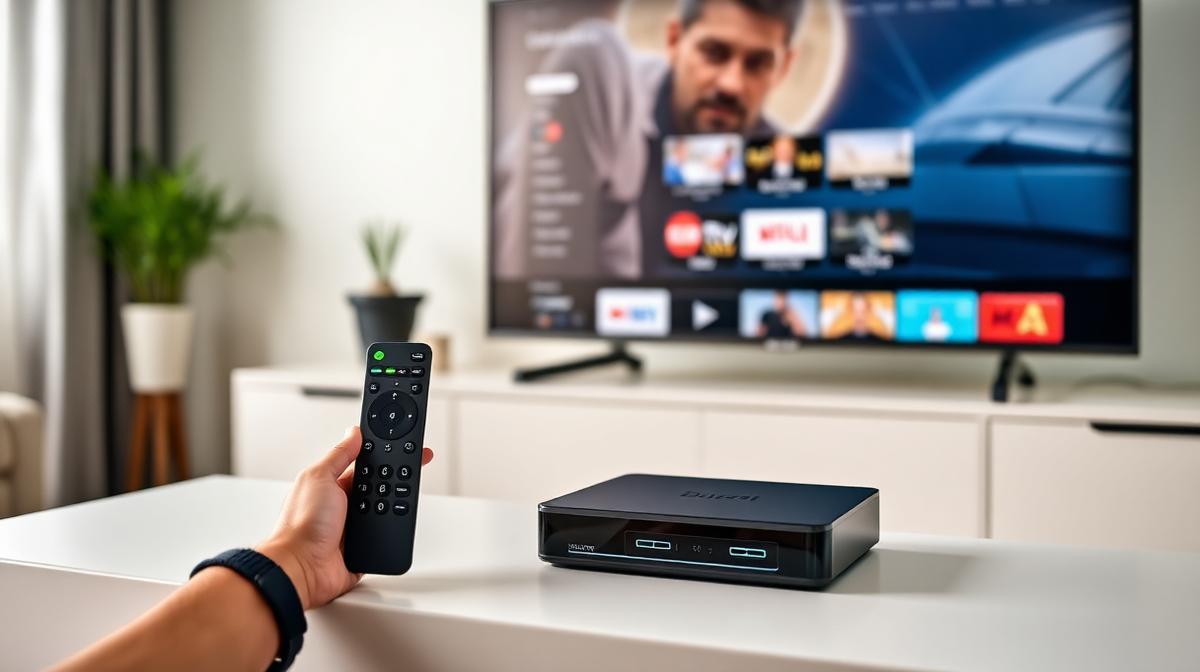
BuzzTV boxes are Android-based IPTV devices with a built-in IPTV launcher. They support Xtream Codes, M3U playlists, and portal URLs. This guide covers all three setup methods. If you're new to streaming, read our IPTV beginner's guide first.
🔑 Key Takeaways
- BuzzTV runs Android with a custom IPTV-focused launcher
- Three setup methods: Xtream Codes, M3U playlist, and portal URL
- Built-in EPG, PVR recording, and multi-screen viewing
- Also supports third-party apps like TiviMate
- Setup takes about 5–10 minutes with provider credentials
📌 Disclaimer
What Is BuzzTV?
BuzzTV is a Canadian manufacturer of Android-based IPTV boxes. Their devices combine the flexibility of Android with a custom IPTV-optimized launcher. This gives you the best of both worlds — a polished IPTV interface plus full Android app support.
BuzzTV boxes come with their own IPTV app pre-installed. It supports all major connection types. You can also install apps like TiviMate and IPTV Smarters from the Play Store.
Compared to a Firestick, BuzzTV offers faster channel switching, a more powerful processor, and a purpose-built remote. It's designed for people who primarily use their box for IPTV.
✅ BuzzTV Advantages
- IPTV-optimized launcher and remote
- Supports Xtream Codes, M3U, and portal URLs
- Full Android — install any app
- Built-in PVR recording support
- Multi-screen viewing (picture-in-picture)
- Fast channel switching
⚠️ BuzzTV Limitations
- More expensive than Firestick ($80–180)
- Less common than Firestick or MAG boxes
- Requires separate IPTV subscription
- Some models are hard to find in stock
BuzzTV Models Compared
BuzzTV has released several models. Here's how the current options compare.
| Feature | XRS 4000 | XRS 4500 | XR 4000 | XR 4500 |
|---|---|---|---|---|
Resolution | 4K | 4K HDR | 4K | 4K HDR |
RAM | 2 GB | 4 GB | 2 GB | 4 GB |
Storage | 16 GB | 32 GB | 8 GB | 16 GB |
Wi-Fi | Dual-band | Wi-Fi 6 | Dual-band | Dual-band |
Bluetooth | ||||
PVR Recording | ||||
Price Range | $100–120 | $150–180 | $80–100 | $120–140 |
💡 Which BuzzTV to Buy?
Initial Setup & Network Connection
The first boot sets up Android basics. Complete this before adding your IPTV service.
Connect Hardware
Plug in the HDMI cable, Ethernet cable (recommended), and power adapter. Connect to your TV's HDMI port.
Complete Android Setup
Select your language, connect to Wi-Fi (if not using Ethernet), and set your timezone.
Sign In (Optional)
You can sign in with a Google account to access the Play Store. This is optional but useful for installing extra apps.
Navigate to the IPTV Launcher
BuzzTV boots into its custom launcher. You'll see the IPTV setup option on the home screen. Select it to begin adding your service.
Method 1: IPTV Setup via Xtream Codes
Xtream Codes is the best method for BuzzTV. It provides full EPG support, catch-up TV, and organized channel categories.
Open the BuzzTV IPTV App
Select Xtream Codes
Enter Your Credentials
Enter the three fields from your IPTV provider:
- Server:
http://provider.com:port - Username: Your account username
- Password: Your account password
Connect and Load
Press Connect. The app loads channels, EPG, and VOD content.
🎉 You're ready! Start browsing your channels.
Need a provider? See which top-rated IPTV services support Xtream Codes connections.
Method 2: IPTV Setup via M3U Playlist
M3U playlists work with every IPTV provider. Use this method if your provider doesn't offer Xtream Codes credentials.
Select M3U Playlist
Paste Your M3U URL
Enter your M3U URL from your provider. It looks like:
http://provider.com/get.php?username=xxx&password=xxx&type=m3u_plus
Add EPG Source (Optional)
Save and Watch
Method 3: IPTV Setup via Portal URL
BuzzTV also supports MAG-style portal URLs. This is useful if your provider uses the Stalker middleware system. It works similar to MAG box portal configuration.
Select Portal URL
Enter Portal Details
Enter the portal URL from your provider. You may also need to enter your MAC address.
Some providers register your BuzzTV's MAC address on their end. Ask your provider.
Connect
Optimizing Your BuzzTV Box
These tweaks improve your daily experience. Apply them after your IPTV service is connected.
Favorites & Channel Groups
- Press and hold OK on a channel to add to favorites
- Create custom groups for Sports, Movies, and News
- Use the FAV button on the remote for quick access
PVR Recording
- Connect a USB drive to your BuzzTV box
- Press the Record button while watching a channel
- Schedule recordings through the EPG for future shows
- Recordings save to the USB drive for later playback
Multi-Screen Viewing
- Some BuzzTV models support picture-in-picture
- Watch two channels at the same time
- Great for live sports — watch two games at once
Network Settings
- Use Ethernet over Wi-Fi for the most stable stream
- Set DNS to 8.8.8.8 for faster server resolution
- Enable 5 GHz Wi-Fi if using wireless
💡 Install Extra Apps
Troubleshooting Common Issues
Here are solutions for the most common BuzzTV problems.
"Connection Failed" or "Server Error"
- Verify your credentials — check for typos in the server URL
- Confirm your subscription is active with your provider
- Try a different connection method (switch from Xtream to M3U)
- Restart the BuzzTV box
Buffering and Freezing
- Switch to wired Ethernet
- Run a speed test — you need 25+ Mbps for HD content
- Close background apps to free up RAM
- Change DNS to Google (8.8.8.8) or Cloudflare (1.1.1.1)
No EPG Data
- Check that your provider includes EPG in their service
- Use Xtream Codes instead of M3U for better EPG support
- Go to Settings and refresh the EPG
- Adjust the timezone offset
App Crashes
- Clear the IPTV app cache: Settings → Apps → Clear Cache
- Check for firmware updates from BuzzTV
- Factory reset as a last resort: Settings → System → Reset
Frequently Asked Questions
🔥 Find the Best IPTV Provider for BuzzTV
Compare 20 tested IPTV services. All support BuzzTV boxes.
View Provider Rankings📝 Article Summary
- BuzzTV boxes run Android with a custom IPTV-focused launcher
- Xtream Codes is the recommended connection method
- M3U and portal URLs are also supported for maximum compatibility
- The XRS 4500 is the best model with 4 GB RAM and Wi-Fi 6
- Use Ethernet and Google DNS for the smoothest streaming
Find the Right IPTV Provider
Our expert team has reviewed and ranked the top 20 IPTV services for 2026. Compare features, pricing, and performance to make an informed decision.
Independent reviews • Updated for 2026
Written by
IPTV Reviews Team
Our team of streaming experts is dedicated to helping you find the best IPTV solutions. With years of experience in the industry, we provide in-depth guides, reviews, and tutorials.
You Might Also Like
How to Install IPTV on Firestick: Step-by-Step
Complete guide to installing and setting up IPTV on Amazon Firestick in just 5 minutes.
MAG Box IPTV Setup: How to Configure Your Portal
Step-by-step MAG box portal configuration guide. Covers MAG 322, 420, 524, and 540 models with troubleshooting tips.
Best IPTV Service Providers (2026) — Top 20 Tested
Discover the top 20 IPTV providers in 2026. Compare features, pricing, and channels. Find the perfect streaming service for your needs. Updated reviews.