IPTV Setup on LG WebOS: Complete Guide (2026)
Complete guide to setting up IPTV on LG Smart TVs with WebOS. Three methods: Content Store, USB sideloading, and browser streaming.
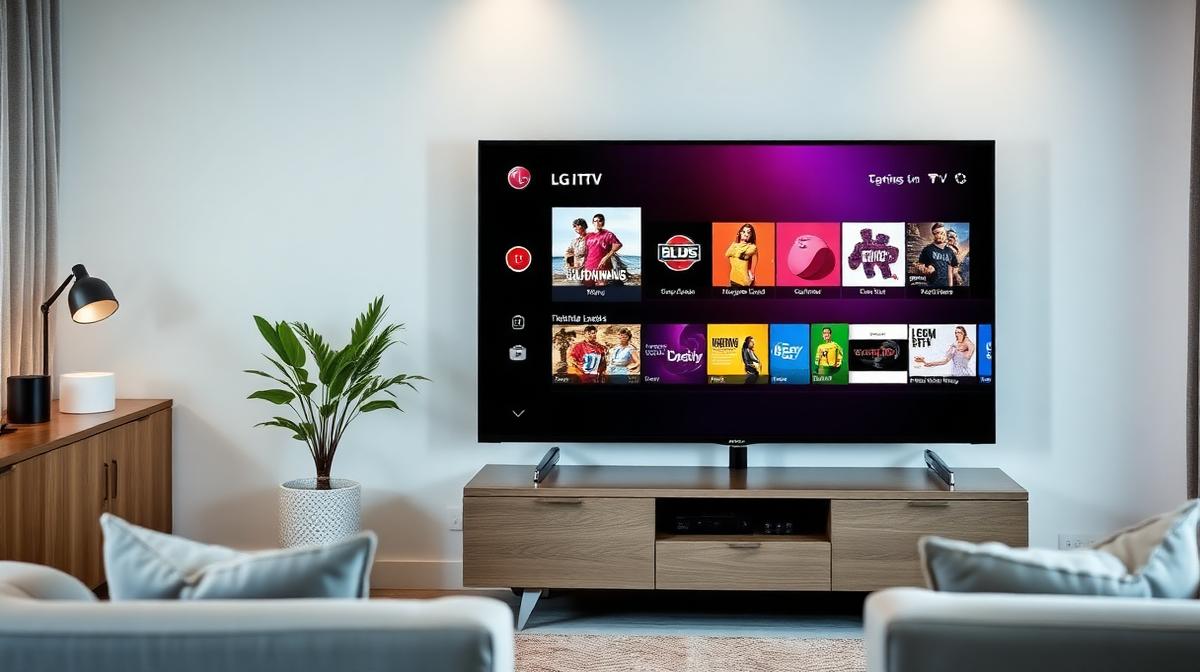
Key Takeaways
- LG WebOS supports IPTV through the Content Store and sideloading
- SS IPTV and IPTV Smarters Pro are the best apps for LG TVs
- Three setup methods: Content Store, USB, and built-in browser
- WebOS offers a smooth, remote-friendly IPTV experience
- Minimum 25 Mbps internet needed for HD streaming
LG Smart TVs with WebOS make IPTV streaming simple and enjoyable. The WebOS platform supports multiple IPTV apps. You can start watching in minutes. This guide covers every installation method available. If you are new to streaming, start with our IPTV explained guide.
📌 Disclaimer
Does LG WebOS Support IPTV?
Yes, LG Smart TVs with WebOS fully support IPTV streaming. You can install IPTV apps from the LG Content Store or sideload them.
WebOS is LG's smart TV platform. It is known for being fast and easy to use. The Magic Remote makes navigation smooth. Most top IPTV providers in 2026 support LG TVs natively.
LG TVs from 2016 onward run WebOS 3.0 or later. These models support most IPTV apps. Newer models with WebOS 6.0+ offer even better performance and 4K streaming.
What Do You Need?
Gather these items before starting. Everything is quick and straightforward.
✅ Requirements:
- 📺 LG Smart TV — WebOS 3.0 or newer (2016+ models)
- 📶 Stable internet — 25 Mbps for HD, 50+ Mbps for 4K
- 📧 IPTV subscription — Choose from our tested provider list
- 🔗 M3U URL or credentials — From your IPTV service
- 📱 LG account — For downloading apps from the Content Store
💡 Connection Tip
Method 1: Install from LG Content Store
The LG Content Store is the simplest way to install IPTV apps. Most popular players are available here.
Open the LG Content Store
Search for an IPTV App
Install the App
Configure Your IPTV Service
Enjoy Your Channels
Providers like Smart IPTVs have native LG apps. This makes setup even faster. They also offer remote-friendly interfaces built for TV screens.
Method 2: USB Sideloading
If your preferred app is not in the Content Store, you can install it via USB. This method works for most WebOS versions.
Download the App File
Copy to USB Drive
Enable Developer Mode
On your LG TV, go to the LG Content Store.
Search for "Developer Mode" and install the app.
Sign in with your LG developer account.
Install via USB
⚠️ Safety First
Method 3: Use the Built-in Browser
LG WebOS includes a web browser. Some IPTV services offer web-based players you can access directly.
This is the quickest method. But it has limits. The browser does not support all video formats. It works best for testing a service before installing a dedicated app.
Open the Web Browser
Go to Your IPTV Web Player
Start Streaming
Best IPTV Apps for LG WebOS
We tested the top IPTV apps on LG WebOS. Here is how they compare.
| Feature | SS IPTV | IPTV Smarters | Smart IPTV |
|---|---|---|---|
LG Store | |||
Free to Use | |||
EPG Guide | |||
M3U Support | |||
4K Support | |||
Best For | Free Option | Most Users | Simple Setup |
✅ LG WebOS for IPTV
- Magic Remote makes navigation intuitive
- WebOS is fast and lightweight
- Built-in browser as backup streaming method
- Native 4K and Dolby Vision support
- Good selection of IPTV apps in the Content Store
⚠️ Limitations
- TiviMate is not available on WebOS
- Sideloading is more complex than on Android TV
- Some older models have limited app support
Looking for a provider that works great on LG? Check our review of CatchOn TV or see the full provider reviews section.
🔥 Find the Best IPTV for Your LG TV
Compare 20 tested IPTV providers. Find one with dedicated LG WebOS support.
View Provider RankingsTroubleshooting LG WebOS IPTV Issues
Having trouble? These are the most common LG IPTV issues with simple fixes.
App Crashes or Freezes
- Clear the app cache in Settings → Apps
- Uninstall and reinstall the app
- Update your LG TV firmware
- Restart the TV by unplugging for 30 seconds
No Sound or Audio Issues
- Check audio output settings in Settings → Sound
- Try switching between PCM and Auto audio modes
- Ensure the IPTV app audio is not muted
Black Screen on Channels
- Your M3U URL may be expired — request a new one
- Try a different channel to check if the issue is channel-specific
- Switch the video decoder in the app settings
💡 Performance Boost
Frequently Asked Questions
Final Summary
LG WebOS is a great platform for IPTV. Setup is quick, and the Magic Remote makes it enjoyable.
Whether you use the Content Store, USB sideloading, or the browser, you have options. Choose the method that fits your comfort level. For the best results, pair your LG TV with a reliable IPTV provider.
Want to explore more setup guides? Read our Firestick IPTV installation tutorial or learn about IPTV versus cable TV.
📝 Article Summary
- LG WebOS 3.0+ supports IPTV through the Content Store and sideloading
- SS IPTV (free) and IPTV Smarters Pro are the top app choices
- Three setup methods: Content Store, USB, and browser
- Use wired Ethernet for the best streaming stability
- Minimum 25 Mbps for HD, 50+ Mbps for 4K streaming
Find Your Ideal IPTV Provider
See our expert-tested list of the top 20 IPTV services for 2026
Browse Provider ReviewsFind the Right IPTV Provider
Our expert team has reviewed and ranked the top 20 IPTV services for 2026. Compare features, pricing, and performance to make an informed decision.
Independent reviews • Updated for 2026
Written by
IPTV Reviews Team
Our team of streaming experts is dedicated to helping you find the best IPTV solutions. With years of experience in the industry, we provide in-depth guides, reviews, and tutorials.
You Might Also Like
How to Install IPTV on Firestick: Step-by-Step
Complete guide to installing and setting up IPTV on Amazon Firestick in just 5 minutes.
What is IPTV Service? Complete Guide 2026
Learn everything about IPTV services, how they work, and why they are the future of television streaming.
Smart IPTVs Review 2026: Best IPTV for Smart TVs?
Smart IPTVs review covering native Samsung/LG apps, remote-friendly interface, 18,500+ channels, pricing, and Smart TV optimization. No Firestick needed?