How to Install IPTV on Samsung Smart TV (2026 Guide)
Step-by-step guide to install IPTV on Samsung Smart TV. Covers Tizen OS apps, sideloading, Smart IPTV setup, and troubleshooting tips.
Key Takeaways
- Samsung Smart TVs support IPTV through Tizen OS apps or sideloading
- Smart IPTV and IPTV Smarters Pro are the top apps for Samsung TVs
- You need at least 25 Mbps internet for smooth HD streaming
- Setup takes about 10 minutes with no technical skills required
- A wired Ethernet connection delivers the best streaming quality
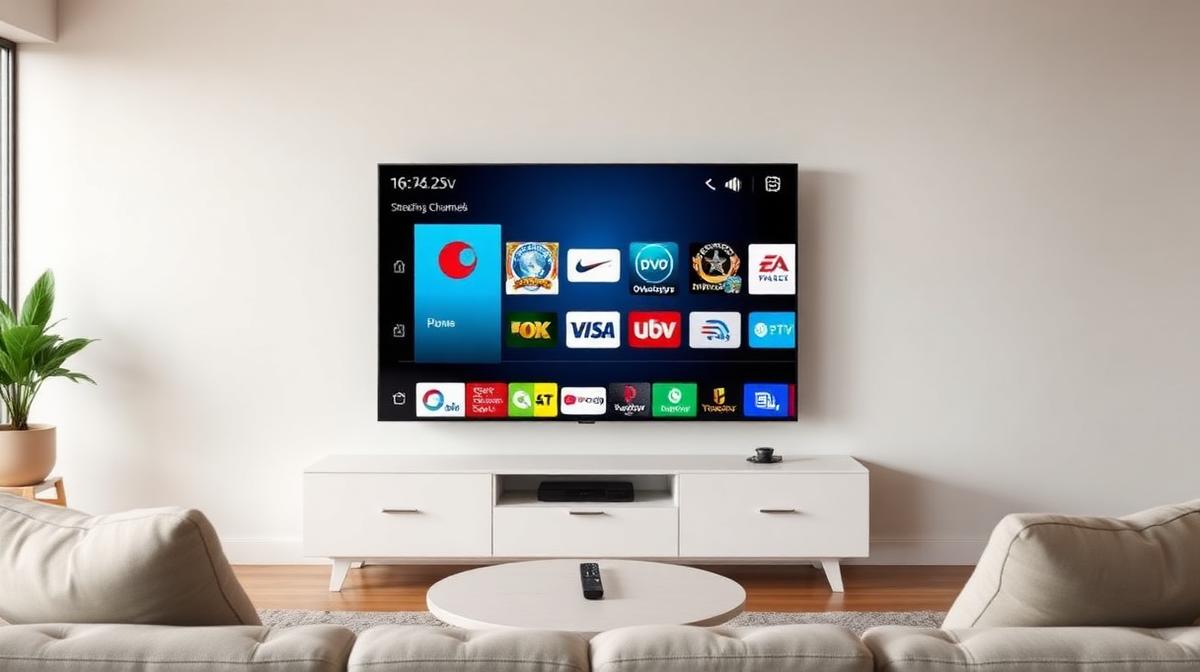
Samsung Smart TVs are one of the best devices for IPTV streaming. With the Tizen operating system, you can install IPTV apps directly. No extra hardware is needed. This guide walks you through every step. New to IPTV? Read our beginner's guide to IPTV first.
📌 Disclaimer
Can You Install IPTV on a Samsung Smart TV?
Yes, Samsung Smart TVs fully support IPTV apps. You can stream thousands of live channels directly on your TV.
Samsung TVs run Tizen OS. This system supports several IPTV players. You can download apps from the Samsung App Store. You can also sideload apps for more options.
Most top-rated IPTV providers offer apps that work with Samsung TVs. Some even have dedicated Samsung apps. This makes setup very easy.
What Do You Need to Get Started?
Before installing IPTV, make sure you have everything ready. Here is a quick checklist.
✅ Requirements Checklist:
- 📺 Samsung Smart TV — 2017 or newer model with Tizen OS
- 📶 Internet connection — 25 Mbps minimum for HD, 50+ Mbps for 4K
- 📧 Active IPTV subscription — Get one from a trusted IPTV provider
- 📱 Samsung account — Needed to download apps from the store
- 🔗 M3U URL or login credentials — Provided by your IPTV service
💡 Speed Tip
Method 1: Install from Samsung App Store
The easiest way to get IPTV on Samsung is through the built-in app store. It takes just a few minutes.
Open the Samsung App Store
Search for an IPTV App
Install the App
Open and Configure
Start Watching
This method works for most users. If your preferred app is not in the Samsung store, try sideloading. Providers like Smart IPTVs offer native Samsung apps that make this process even smoother.
Method 2: Sideloading IPTV Apps
Sideloading lets you install apps not available in the Samsung store. This gives you access to more IPTV players.
⚠️ Important Note
Enable Developer Mode
Go to Settings → Apps → About This TV.
Click on the Tizen version number 5 times.
A developer mode option appears. Toggle it ON.
Find Your TV IP Address
Install Tizen Studio on Your Computer
Connect and Install the APK
Sideloading is more technical. But it gives you the most flexibility. If you prefer a simpler setup, consider using a Firestick with your Samsung TV instead.
How to Use the Smart IPTV App
Smart IPTV is one of the most popular apps for Samsung TVs. It supports M3U playlists and has a clean interface.
Install Smart IPTV
Note Your MAC Address
Upload Your Playlist
Restart the App
Troubleshooting Common Samsung IPTV Issues
Running into problems? Here are the most common issues and quick fixes.
App Won't Install
- Check that your TV model is 2017 or newer
- Make sure you have enough storage space
- Update your Samsung TV firmware
- Try restarting the TV and attempting again
Buffering or Freezing
- Switch to a wired Ethernet connection
- Lower the stream quality to 720p temporarily
- Close other apps running in the background
- Check your internet speed — you need at least 25 Mbps
Channels Not Loading
- Verify your M3U URL is correct
- Check if your subscription is active
- Try a different IPTV app
- Contact your IPTV provider's support
💡 Quick Fix
Best IPTV Apps for Samsung Smart TV
Not all IPTV apps work the same on Samsung. Here are the top options based on our testing.
| Feature | Smart IPTV | IPTV Smarters | OTT Navigator |
|---|---|---|---|
Samsung Store | |||
M3U Support | |||
EPG Guide | |||
Free to Use | |||
4K Support | |||
Best For | Simple Setup | Most Users | Power Users |
✅ Samsung TV for IPTV
- No extra device needed — stream directly on your TV
- Tizen OS is fast and responsive
- Native 4K and HDR support on newer models
- Remote-friendly apps with simple navigation
- Regular firmware updates improve compatibility
⚠️ Limitations
- Older models (pre-2017) have limited app support
- Some apps require sideloading
- No TiviMate app available for Samsung
For the best experience, pair your Samsung TV with a reliable IPTV provider like CatchOn TV. They offer dedicated Smart TV support and easy setup.
🔥 Find the Perfect IPTV Provider for Samsung
Compare the top 20 tested IPTV services. Find one with Samsung TV support.
View Provider RankingsFrequently Asked Questions
Final Tips for Samsung IPTV
Follow these tips to get the best IPTV experience on your Samsung Smart TV.
🎯 Pro Tips:
- ✅ Keep your Samsung TV firmware updated
- ✅ Use Ethernet over WiFi whenever possible
- ✅ Choose a provider with Samsung-specific support
- ✅ Start with a free trial before committing to a subscription
- ✅ Set up favorites for quick access to your top channels
Samsung Smart TVs are excellent for IPTV. The built-in app store makes setup simple. For more device guides, check our Firestick setup tutorial or compare IPTV versus cable TV to see why millions are switching.
📝 Article Summary
- Samsung Smart TVs (2017+) support IPTV through Tizen OS apps
- Three methods: App Store, sideloading, or Smart IPTV app
- IPTV Smarters Pro is the best all-around Samsung IPTV app
- You need 25+ Mbps internet for HD, 50+ Mbps for 4K
- Use a wired connection for the most stable streaming
Ready to Start Streaming?
Browse our expert-reviewed list of the top 20 IPTV services for 2026
Explore Top ProvidersFind the Right IPTV Provider
Our expert team has reviewed and ranked the top 20 IPTV services for 2026. Compare features, pricing, and performance to make an informed decision.
Independent reviews • Updated for 2026
Written by
IPTV Reviews Team
Our team of streaming experts is dedicated to helping you find the best IPTV solutions. With years of experience in the industry, we provide in-depth guides, reviews, and tutorials.
You Might Also Like
How to Install IPTV on Firestick: Step-by-Step
Complete guide to installing and setting up IPTV on Amazon Firestick in just 5 minutes.
What is IPTV Service? Complete Guide 2026
Learn everything about IPTV services, how they work, and why they are the future of television streaming.
Smart IPTVs Review 2026: Best IPTV for Smart TVs?
Smart IPTVs review covering native Samsung/LG apps, remote-friendly interface, 18,500+ channels, pricing, and Smart TV optimization. No Firestick needed?