How to Setup IPTV on Roku: Step-by-Step Guide
Three methods to watch IPTV on Roku: screen mirroring, M3U players, and provider apps. Full step-by-step guide for 2026.
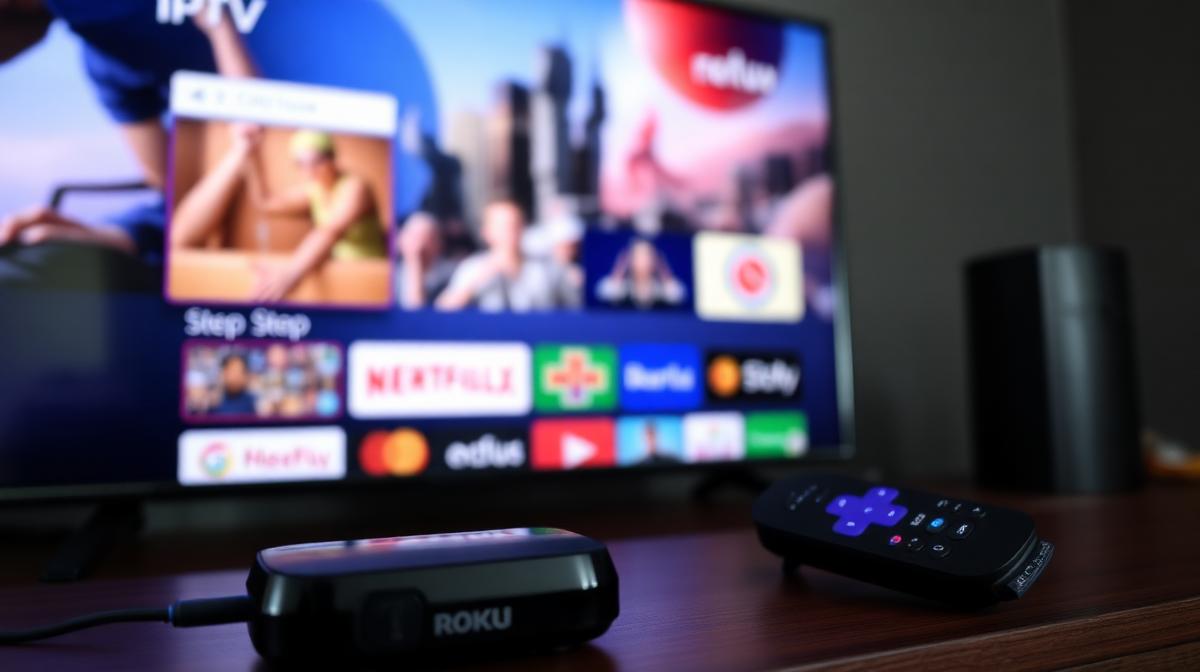
Setting up IPTV on Roku is different from other devices. Roku's closed operating system limits direct IPTV app installs. But there are still three reliable methods that work in 2026. This guide walks you through each option step by step.
🔑 Key Takeaways
- Roku doesn't support sideloading — but IPTV still works
- Screen mirroring from a phone or laptop is the easiest method
- Some IPTV providers have dedicated Roku channel apps
- M3U playlist players are available in the Roku Channel Store
- A Firestick may be a better choice if IPTV is your main use case
📌 Disclaimer
Can You Use IPTV on Roku?
Yes, you can use IPTV on Roku. However, Roku doesn't allow sideloading apps like Amazon Firestick does. Roku's operating system is more locked down. This means popular apps like TiviMate and IPTV Smarters are not available.
But don't worry. There are three workarounds that work well. Each has its own pros and cons. New to IPTV? Read our complete IPTV guide first.
✅ Roku for IPTV — Pros
- Affordable devices starting at $29.99
- Simple, user-friendly interface
- Screen mirroring works with Android phones
- Some IPTV providers offer Roku apps
- Reliable hardware with good Wi-Fi
⚠️ Roku for IPTV — Cons
- No sideloading — limited IPTV app choices
- No TiviMate or IPTV Smarters support
- Screen mirroring drains phone battery
- Fewer IPTV features compared to Firestick
Method 1: Screen Mirroring (Easiest)
Screen mirroring is the simplest way to watch IPTV on Roku. You install an IPTV app on your phone. Then mirror your phone screen to the Roku. This works with Android phones and Windows laptops.
Enable Screen Mirroring on Roku
Install an IPTV App on Your Phone
Add Your IPTV Subscription
Start Screen Mirroring
Watch on Your TV
⚠️ iPhone Users
Method 2: M3U Playlist Player
Some M3U playlist players are available in the Roku Channel Store. These apps let you enter your IPTV playlist URL directly on the Roku. No phone is needed.
Open the Roku Channel Store
Search for an M3U Player
Install and Open the App
Enter Your M3U URL
💡 Getting Your M3U URL
http://provider.com/get.php?username=xxx&password=xxx&type=m3u_plus. Check your welcome email or provider dashboard.Method 3: Provider-Specific Roku Apps
Some IPTV providers have their own Roku apps. These give you the best experience because they're built specifically for Roku's interface. Not all providers offer this, but several of the top IPTV services do.
Providers with Roku support include:
- IPTV Stream — Dedicated Roku channel app
- IPTV Suppliers — Roku-compatible streaming
- SO Player — Proprietary app available on Roku
To install a provider app, search the Roku Channel Store for the provider's name. Or use the provider's activation code if they have a private channel.
Best IPTV Providers for Roku
Not all IPTV providers work on Roku. Some have dedicated Roku apps. Others work through screen mirroring. Here are the ones we recommend for Roku users.
| Provider | Roku App | Screen Mirror | Channels | Price/Mo |
|---|---|---|---|---|
IPTV Stream | 19,500+ | $18 | ||
SO Player | 17,500+ | $18 | ||
IPTV Suppliers | 18,000+ | $18 | ||
CatchOn TV | 24,000+ | $20 | ||
4K Live IPTV | 16,500+ | $22 |
For a full list of providers with ratings and pricing, check our complete IPTV provider rankings.
Troubleshooting Roku IPTV Issues
Here are the most common problems when using IPTV on Roku and how to fix them.
Screen Mirroring Lag
- Keep your phone and Roku on the same Wi-Fi network
- Use a 5 GHz Wi-Fi band for faster speeds
- Close other apps on your phone to free up resources
- Reduce the streaming quality to 720p in the IPTV app
M3U Player Not Loading Channels
- Double-check your M3U URL for typos
- Make sure the URL ends in .m3u or .m3u8
- Ask your provider for an updated playlist link
- Try a different M3U player app
Provider App Not Found
- The app may be a private channel — ask your provider for the activation code
- Go to roku.com/en-us/add and enter the code
- Some apps may not be available in all regions
Roku vs Firestick: Which Is Better for IPTV?
Firestick is better for IPTV in most cases. It supports sideloading. This gives you access to TiviMate, IPTV Smarters, and other top apps. Roku's locked OS limits your options.
| Feature | Roku | Firestick |
|---|---|---|
IPTV App Support | Limited | Excellent |
Sideloading | ||
TiviMate | ||
Screen Mirroring | ||
Price | From $29 | From $29 |
Best For | Casual IPTV | Dedicated IPTV |
If you decide to switch, our Firestick IPTV setup guide will have you streaming in 5 minutes. You can also compare IPTV vs cable TV costs to see the savings.
Frequently Asked Questions
🔥 Find the Best IPTV Provider for Roku
Compare 20 tested IPTV services. See which ones support Roku.
View Provider Rankings📝 Article Summary
- Roku supports IPTV through screen mirroring, M3U players, and provider apps
- Screen mirroring from Android is the easiest setup method
- Some providers like IPTV Stream and SO Player have dedicated Roku apps
- Firestick is a better choice if IPTV is your primary use case
- Use 25+ Mbps internet and 5 GHz Wi-Fi for the best experience
Find the Right IPTV Provider
Our expert team has reviewed and ranked the top 20 IPTV services for 2026. Compare features, pricing, and performance to make an informed decision.
Independent reviews • Updated for 2026
Written by
IPTV Reviews Team
Our team of streaming experts is dedicated to helping you find the best IPTV solutions. With years of experience in the industry, we provide in-depth guides, reviews, and tutorials.
You Might Also Like
How to Install IPTV on Firestick: Step-by-Step
Complete guide to installing and setting up IPTV on Amazon Firestick in just 5 minutes.
What is IPTV Service? Complete Guide 2026
Learn everything about IPTV services, how they work, and why they are the future of television streaming.
IPTV Stream Review: Reliability Test 2026
IPTV Stream review focusing on server uptime, US/EU content quality, Roku support, and pricing. Does it live up to its reliability promise?